How to Turn On Data Roaming for Your Kwetu eSIM
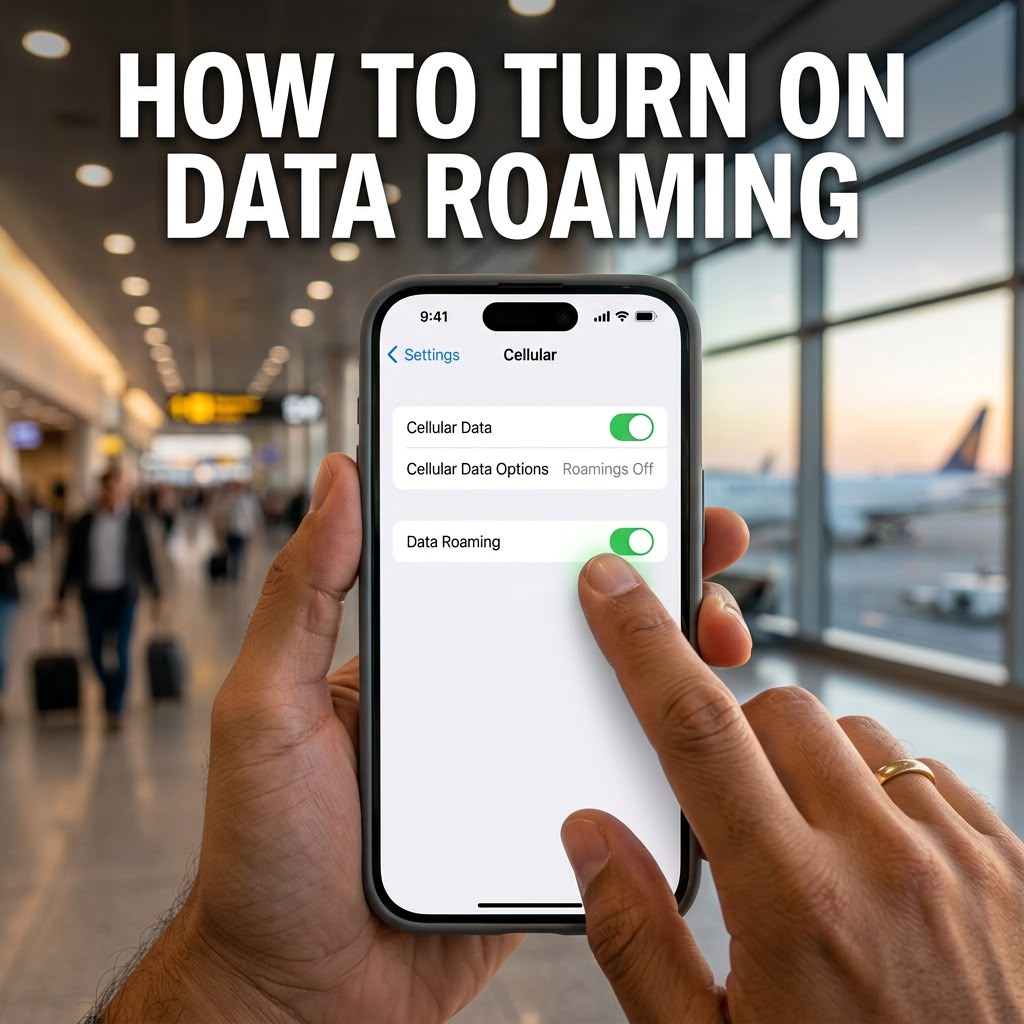
Have you already installed your Kwetu eSIM but still don’t have internet? 📱✨
One of the first things you should check is your Data Roaming setting. Data Roaming allows your Kwetu eSIM to connect to a mobile network while you’re travelling.
In this guide, we’ll show you how to turn on Data Roaming and make sure your Kwetu eSIM is selected for mobile data.
How to Turn On Data Roaming on an iPhone
Follow these simple steps:
- Open Settings on your iPhone.
- Tap Cellular or Mobile Data.
- Select your Kwetu eSIM.
- Make sure the eSIM line is turned ON.
- Tap Cellular Data Options or Mobile Data Options.
- Turn Data Roaming ON.
Make Sure Your Kwetu eSIM Is Selected for Mobile Data
After turning on Data Roaming, go back to your Cellular or Mobile Data settings.
Under Cellular Data or Mobile Data, make sure your Kwetu eSIM is selected as the line you want to use for internet.
This is important because your phone may have more than one SIM or eSIM installed.
Still Not Connected?
If your Kwetu eSIM is still not connecting, try these quick steps:
- Turn Airplane Mode ON.
- Wait for about 30 seconds.
- Turn Airplane Mode OFF.
- Give your phone a few moments to reconnect to the network.
If you’re still not connected, restart your phone and check your settings again.
Get Connected with Kwetu eSIM
Once your Kwetu eSIM is installed, your data package is active, Data Roaming is ON, and the Kwetu eSIM is selected for mobile data, you should be able to connect to the internet wherever your package provides coverage. 🌍📶
If you’re still having trouble connecting, contact Kwetu support and our team will be happy to assist you. 💙

