How to Keep Your Safaricom Line Active for M-PESA & Bank OTPs While Using Kwetu eSIM Abroad
Nothing ruins landing in a new country faster than getting locked out of your bank app or being unable to authorize an M-PESA transaction because you popped out your Safaricom SIM card.
Whether you need to approve an urgent transaction on the M-PESA Super App, log into your local banking app, or receive two-factor authentication (OTP) codes, you need your primary Safaricom number online.
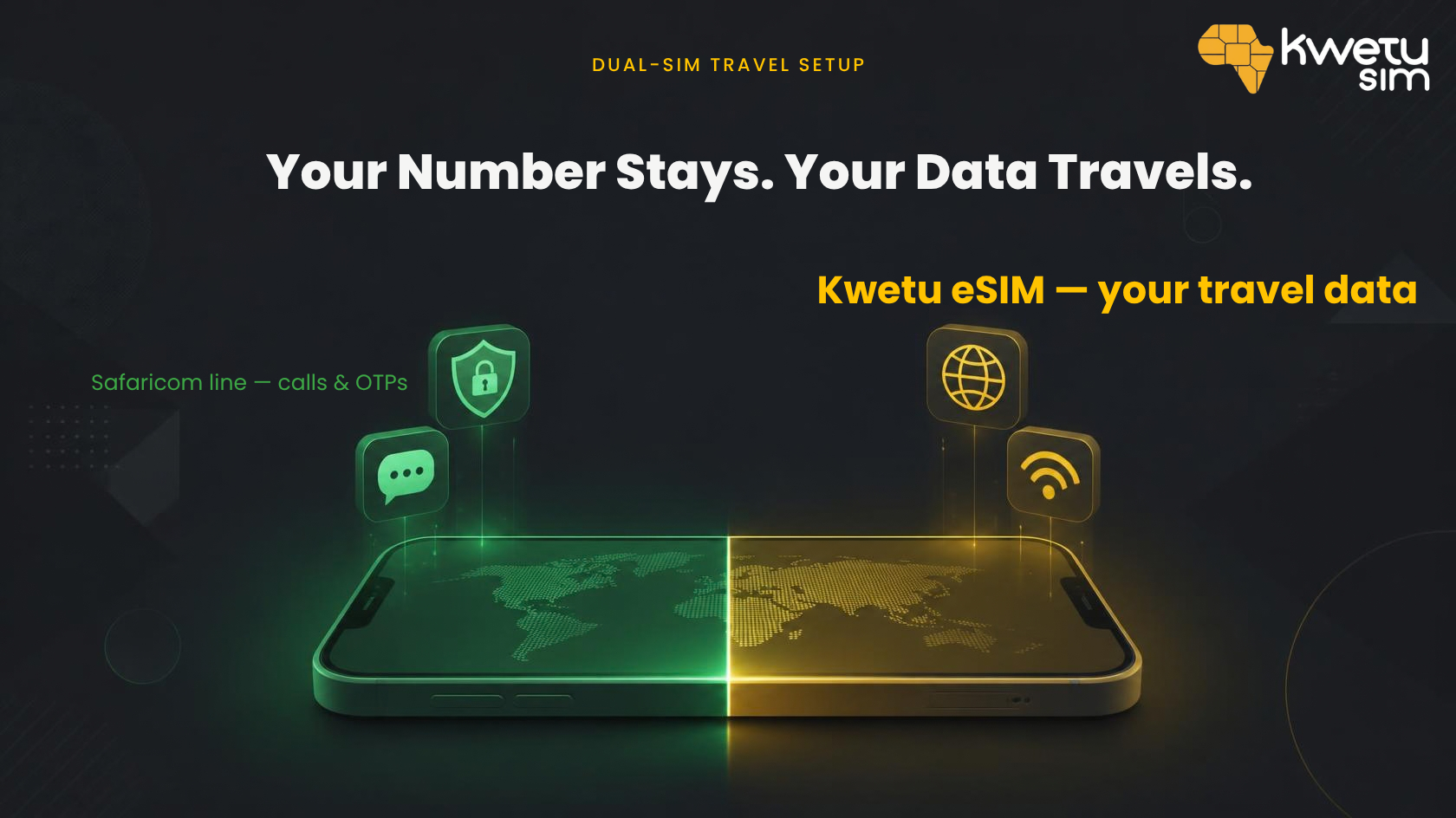
The good news? You do not have to pay exorbitant Safaricom roaming fees just to keep your number active. Thanks to Dual-SIM technology on modern smartphones, you can run your physical Safaricom SIM for SMS and calls alongside Kwetu eSIM for high-speed, affordable travel data—simultaneously.
Here is your step-by-step guide to configuring your phone settings before takeoff so you never miss an OTP or M-PESA alert again.
The Dual-SIM Secret: How It Works
When traveling internationally, your smartphone can run two lines at once:
- Primary Line (Safaricom Physical SIM): Remains active solely to receive incoming SMS (which is almost always FREE globally) and urgent phone calls.
- Secondary Line (Kwetu eSIM): Handles 100% of your internet traffic, web browsing, WhatsApp, maps, and social media at local rates.
Golden Rule of Traveling Dual-SIM: Keep your Safaricom SIM active, but turn OFF Data Roaming for Safaricom. Turn ON Mobile Data and Data Roaming for Kwetu eSIM only.
iPhone Setup (iOS)
Set up your lines before boarding your flight or immediately upon landing:
Step 1: Label Your Lines Clearly
- Open Settings → Cellular (or Mobile Data).
- Under SIMs, tap your Safaricom SIM and change the label to “Home” or “Safaricom”.
- Tap your new Kwetu eSIM profile and label it “Kwetu Data” or “Travel”.
Step 2: Route Your Internet to Kwetu eSIM
- Go to Settings → Cellular → Cellular Data.
- Select Kwetu Data.
- CRITICAL: Toggle Allow Cellular Data Switching to OFF. (This stops your iPhone from silently switching to Safaricom data if the local eSIM signal fluctuates, saving you from accidental roaming charges).
Step 3: Set Default Line for Calls & Texts
- Go to Settings → Cellular → Default Voice Line.
- Select Safaricom. (This ensures your SMS OTPs, bank alerts, and M-PESA confirmations land on your usual phone number).
Step 4: Manage Roaming Settings
- Go back to Settings → Cellular and tap Safaricom → Toggle Data Roaming OFF.
- Tap Kwetu Data → Toggle Data Roaming ON.
Android Setup (Samsung, Google Pixel, Xiaomi)
(Exact menu titles may vary slightly depending on your phone brand, but the logic remains identical).
Step 1: Access SIM Manager
- Open Settings → Connections (or Network & Internet) → SIM Manager.
- Ensure both your Safaricom SIM and Kwetu eSIM are switched ON.
Step 2: Set Preferred SIMs
- Mobile Data: Set to Kwetu eSIM.
- Calls: Set to Safaricom (or “Ask First”).
- Messages (Text): Set to Safaricom.
Step 3: Configure Roaming Settings
- Go to Settings → Connections → Mobile Networks.
- Select your Safaricom SIM → Turn Data Roaming OFF.
- Select your Kwetu eSIM → Turn Data Roaming ON.
- Disable any setting that says “Auto Data Switching”.
How M-PESA and Bank OTPs Work Abroad
Once your Dual-SIM settings are configured properly:
- M-PESA App Transactions: Because Kwetu provides high-speed internet data, you can open your Safaricom M-PESA Super App over Kwetu data and perform transactions smoothly.
- Bank SMS OTPs: When you initiate a bank transfer or card purchase requiring an OTP, your Kenyan bank sends an SMS over international cellular networks. Since your Safaricom SIM is on for calls/SMS, the text arrives on your handset within seconds—completely free of data roaming fees.
- WhatsApp & Messaging: WhatsApp stays linked to your regular Safaricom phone number automatically. You do not need to change your WhatsApp number when prompted.
Pre-Departure Checklist
Before stepping onto your flight at JKIA:
- [x] Download and activate your Kwetu eSIM via the M-PESA Super App or Kwetu website.
- [x] Set Kwetu eSIM as your default Mobile Data line.
- [x] Set Safaricom as your default Voice/SMS line.
- [x] Turn Data Roaming OFF for Safaricom.
- [x] Turn Data Roaming ON for Kwetu eSIM.
- [x] Turn OFF “Allow Cellular Data Switching”.
Travel Smarter with Kwetu eSIM
Never trade convenience for connectivity. By setting up Dual-SIM before you fly, you enjoy the best of both worlds: cheap, fast global data from Kwetu eSIM and uninterrupted access to your M-PESA and bank security alerts.
Heading out on your next trip soon?
Open your Safaricom M-PESA App → Do More with M-PESA → Book & Travel → Kwetu eSIM to grab your data plan today!

