How to Buy an eSIM with Kwetu: Your Simple Setup Guide
Picture this: you’ve just landed after a long flight, your phone shows “No Service,” and the airport WiFi is doing that thing where it connects to everything except the internet. Sound familiar?
That’s exactly the moment Kwetu eSIM is built to erase. No SIM card kiosks, no roaming bill shock, and no searching for a tiny SIM tray tool. Just your phone, a few taps before or during your trip, and you’re ready to get connected.
Here’s how to buy your Kwetu eSIM.
Step 1: Download the Kwetu eSIM App
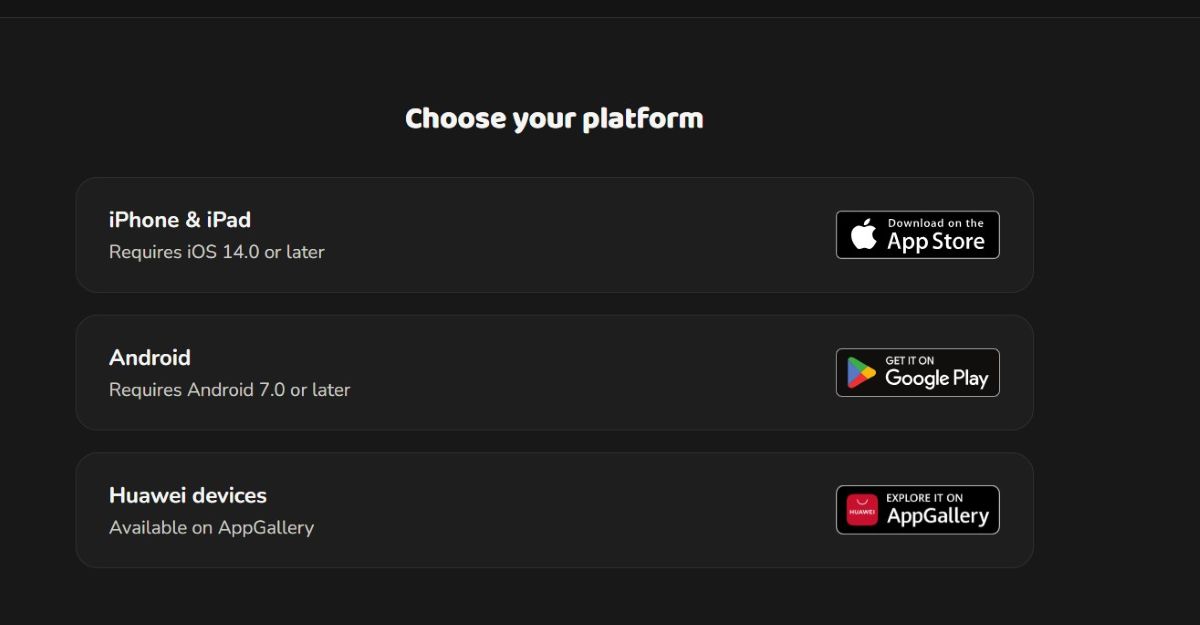
First, download the Kwetu eSIM app. You’ve got two easy options:
The quick way
Head to kwetuesim.com/download. This link automatically detects your device and sends you to the right store.
The direct way
You can also search for “Kwetu eSIM” in your app store, or download it directly:
| Your Device | Get the App |
|---|---|
| iPhone (App Store) | Download here |
| Android (Google Play) | Download here |
| Huawei (AppGallery) | Download here |
Step 2: Create Your Account
Once you’ve installed the app, create your Kwetu eSIM account.
You can sign up using:
- Your email address
- Your Google Account
- Your Apple Account (iPhone users only)
- Your Yahoo Account
Once your account is ready, you’re ready to choose your eSIM.
Step 3: Search for Your Destination
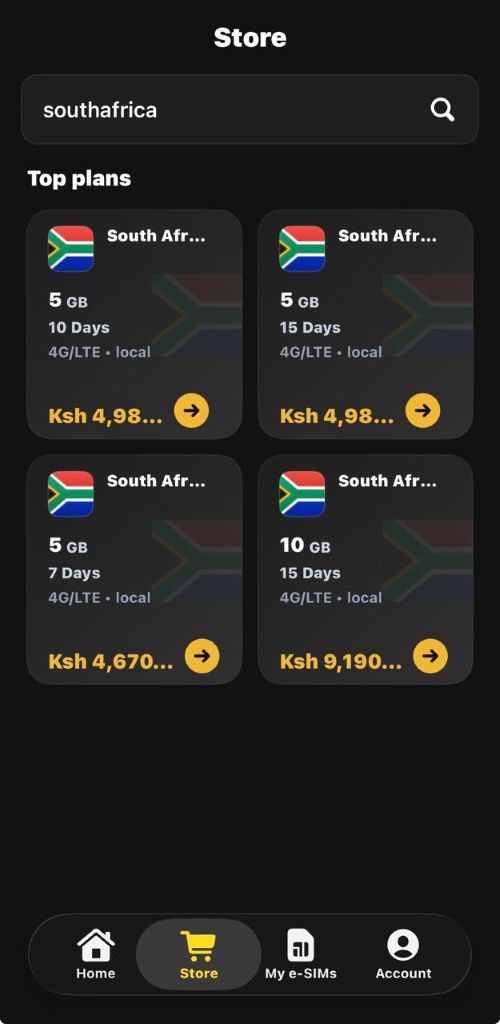
Search for the country you’re travelling to.
For example:
South Africa
You can also search for a city or location.
For example:
Cape Town
Searching for Cape Town will show you the available eSIM options for South Africa.
Step 4: Choose Your Bundle
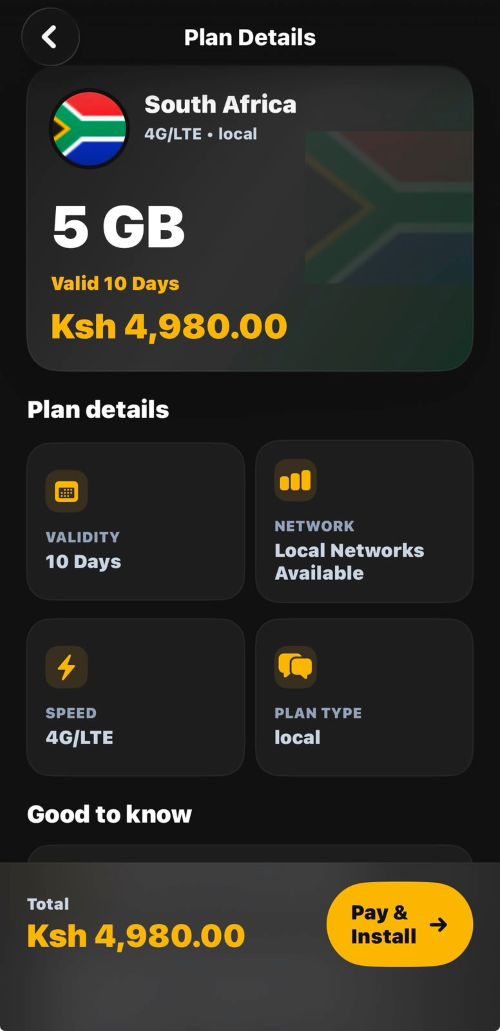
Browse the available bundles and their prices until you find one that suits your trip.
Kwetu offers different types of bundles, including:
Fixed Data Bundles
Fixed bundles give you a specific amount of data to use.
For example, a 5GB bundle gives you 5GB of data. Once you’ve used the available 5GB, the bundle stops working.
Unlimited Bundles
Unlimited bundles allow you to continue using data, but they may be subject to a Fair Usage Policy (FUP).
For example, a 3GB/day unlimited bundle allows you to use up to 3GB of data at the standard speed each day. After using the daily high-speed allowance, your speeds are throttled to 2Mbps. The allowance then resets the following day.
Compare the available bundles and choose the one that best fits your trip and data needs.
Step 5: Review Your Bundle
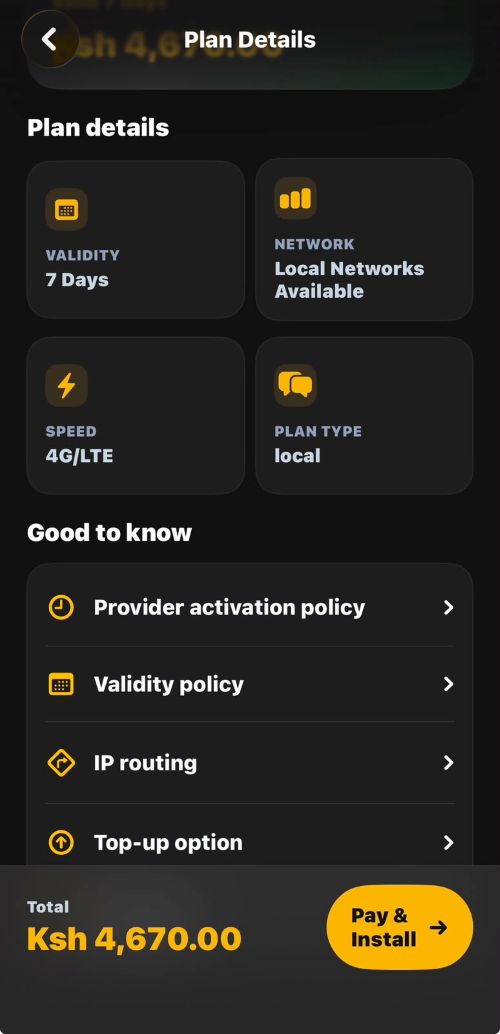
Once you’ve found a bundle you like, click on it to see more information.
The bundle details will show important information such as:
- Network
- Speed
- Fair Usage Policy (for Unlimited bundles)
Take a moment to review these details before purchasing so you know exactly what you’re getting.
Step 6: Pay for Your eSIM
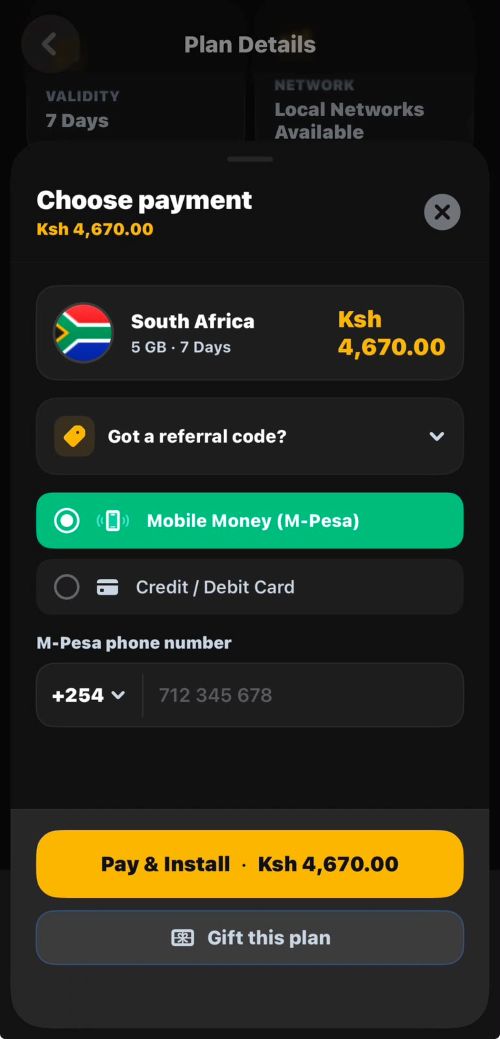
Once you’re happy with your bundle, click Pay at the bottom of the screen.
You can also choose to gift the eSIM to someone else. We’ll explain how gifting works in a separate guide.
Choose your preferred payment method.
For now, Kwetu supports:
- Card payments
- M-Pesa payments
More payment options are coming soon.
Step 7: Your eSIM Is Assigned to Your Account
Once your payment is successfully completed, an eSIM is assigned to your Kwetu account.
Important: Your eSIM has been purchased and assigned to your account, but it is not installed on your phone yet.
That’s the next step.
Next Step: Install Your eSIM
Your eSIM is now ready to be installed on your device.
Follow the Kwetu eSIM installation guide to complete the setup and get connected.
You’ve bought your eSIM — now let’s get you connected.

